Managing email well makes a real difference to how your workday runs. An email client gives you a dedicated space to send, receive, sort, and search messages, all without juggling multiple browser tabs or fighting a cluttered webmail inbox.
Good email clients go beyond basic messaging. They let you organize conversations into folders, block spam before it reaches you, schedule messages to send later, and keep your inbox consistent across every device you own.
The history of email stretches back to the early 1970s with Ray Tomlinson, the engineer who figured out how to send messages between different computers on ARPANET. Since then, email tools have grown to include calendars, task managers, contacts, file storage, CRM hooks, and team collaboration features. Today you can find a fully capable email client for Windows, Mac, Linux, iOS, and Android.
In this article, we look at the 11 best email clients for Windows and Mac in 2026. We judged each one on usability, features, privacy, security, AI tools, platform support, and price. The list covers free options like Outlook and Gmail through to paid picks like Edison Mail. Whatever your situation, whether you want something simple or a tool built for heavy business use, the right email client will save you time and cut the frustration out of managing your inbox.
👉🏾 Other Appbuilder24 Users also read: 80 Best Mobile App Ideas for Startups in 2024
Best Email Clients for PC and Mac in 2026
12. BillionMail
BillionMail is an open-source mail server and email marketing tool built for anyone who wants full control of their email infrastructure without paying a monthly bill. It was built to bring together everything you need for both transactional email and marketing campaigns under one self-hosted roof.
Most self-hosted setups require you to wire together Postfix, Dovecot, Rspamd, and a dozen config files. BillionMail packages all of that into a single one-click install. The result is a platform that works for developers who want the technical depth and for marketing teams who care more about campaign analytics than server configs.
Features Some key features and strengths of BillionMail include:
- Complete mail server infrastructure with SMTP capabilities
- Unlimited email sending with no built-in speed limits
- Advanced analytics tracking deliverability, open rates, and click-through rates
- Real-time performance metrics displayed on the homepage
- Step-by-step guidance for configuring essential DNS records (SPF, DKIM, DMARC)
- Integrated RoundCube webmail interface
- Customizable email templates for marketing campaigns
- Privacy-first approach where all data stays on your server
- No vendor lock-in with full open-source codebase
If your server runs Docker, you can have BillionMail up and sending email in around 8 minutes. It is released under the AGPLv3 license, so you can use it, modify the source code, and redistribute it freely.
Pros and Cons 👍 Pros:
- Fully open-source with no hidden costs
- Self-hosted for complete control over data and privacy
- Combines mail server and marketing tools in one solution
- Quick installation with Docker
- Unlimited sending capability without subscription fees
👎 Cons:
- Requires server management knowledge for setup and maintenance
- Needs port 25 access which may be restricted by some hosting providers
- Self-hosted nature means taking responsibility for deliverability and security
If you are comfortable running your own server and want to stop paying for email tools indefinitely, BillionMail is one of the most complete self-hosted options available. It covers the full stack, from mail delivery to campaign analytics, in a single open-source package.
11. Postbox
Postbox is a desktop email client for Windows, macOS, and Linux, developed by Postbox, Inc. It launched in 2009 as a power-user alternative to webmail, with a focus on bringing email, contacts, and calendar management together in one fast application.
Postbox tries to find the middle ground between the ease of webmail and the speed of a native desktop client. The interface is clean and themeable, and it handles large volumes of email well without feeling bloated or slow.
Features
Some key features and strengths of Postbox include:
- Unified inbox to view all email accounts in one place
- Customizable themes and layouts
- Smart Search to quickly find emails
- Snooze emails to read later
- Send later option to schedule sending
- Integration with Evernote, Facebook, Twitter, and other services
- Email encryption and digital signatures for security
- Collaboration tools for team-shared folders and task management.
- Calendar and contacts support
- Add-ons and integrations from the Postbox marketplace
Postbox runs on Windows 7 and later, macOS 10.10 Yosemite and later, and common Linux distros including Ubuntu and Fedora. There is a free tier and a paid “Postbox Plus” plan that adds advanced contact management, message templates, and unlimited email storage.
Pros and Cons
👍 Pros:
- Exclusively designed for Mac and Windows users
- Lightning-fast, feature-rich user experience
- Innovative functionalities
- Unified inbox for multiple accounts
👎 Cons:
- Subscription-based pricing model, although available on free plan
Postbox is a solid pick for people who spend a lot of time in their inbox and want more control than webmail offers. Its customization options and extension support make it adaptable to most workflows, and it holds up well across all three major desktop platforms.
10. Mozilla Thunderbird
The Mozilla Foundation built Thunderbird as a standalone companion to Firefox. The aim was a practical, open, standards-compliant email application that anyone could use and anyone could improve.
Mozilla Thunderbird is a free, open-source email client that has been available since 2003. It is maintained by the Mozilla Foundation and built around the idea that email software should be lightweight, configurable, and owned by the user rather than by a platform.
Thunderbird shares its technology foundation with Firefox, which gives it broad cross-platform support and a large developer community. Feature-wise it competes with Outlook and Apple Mail, but with a stronger emphasis on user privacy and data control.
Key Features and Strengths
Some of the key features and strengths of Thunderbird include:
- Open-source – Thunderbird is free to download and use. The source code is openly available for community contribution.
- Privacy-focused – Thunderbird does not collect or share private user data. It supports end-to-end email encryption.
- Customizable – Users can customize the interface with add-ons and themes to suit their preferences. It offers very powerful filters and automation capabilities.
- Universal inbox – Thunderbird can connect to multiple email accounts and aggregate them into one unified inbox.
- Message management – It has robust search, automatic mail grouping, quick reply, and tabbed email features.
- Calendar and contacts – Thunderbird has a built-in calendar and address book functionalities.
Platforms Supported and Pricing
Thunderbird works on Windows, Mac, and Linux in both 32-bit and 64-bit builds. Unofficial mobile ports exist for Android and iOS, though these are community projects and not as full-featured as the desktop version. The desktop client is completely free to download and use.
Pros and Cons
👍 Pros:
- Unbreakable end-to-end encryption
- Intelligent message filtering
- User-friendly natural language search
- Completely Free
👎 Cons:
- There is no option to recall sent messages
- Limited third-party app integrations
Thunderbird is a mature, well-maintained email client with a large open-source community behind it. If you care about customization, privacy, and not being locked into a vendor ecosystem, it is still one of the best free options available in 2026.
👉🏾 Other Appbuilder24 Users also read: App Marketing Strategies to Increase App Downloads in 2024
9. Canary Mail
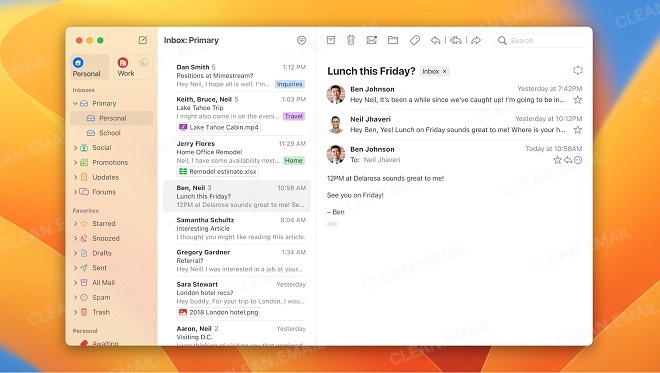
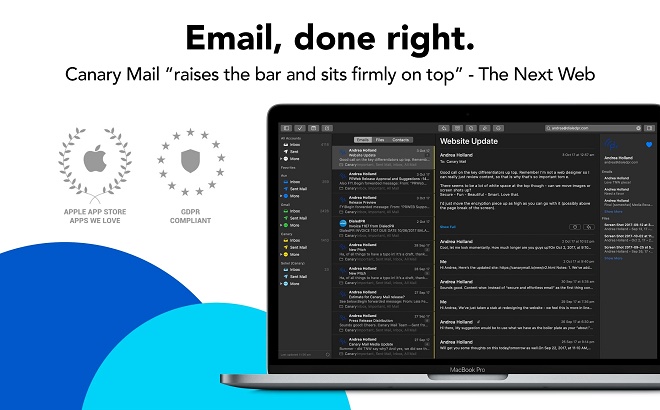
If privacy is your top priority, Canary Mail is worth a close look. It offers end-to-end encryption that you can switch on with a single click, making secure email accessible even if you have no technical background.
For users who are already comfortable with PGP, Canary Mail lets you manage your own encryption keys and send encrypted messages to recipients who do not use Canary at all.
Features
But Canary Mail is not just about encryption. It comes equipped with Smart Filters, a feature that lets you sift through your inbox with ease, isolating unread emails or pinpointing emails with unopened attachments. The Natural Language Search is like having a personal assistant within your inbox, capable of understanding and executing search queries like “emails from dad” or “newsletters from this month.”
AI-Powered Assistance
Canary Mail includes an AI writing tool called Co-pilot. When you are not sure how to phrase a reply, Co-pilot can suggest a draft or refine what you have already written, saving you time on routine correspondence.
Pricing
Canary Mail offers a free version with standard features, and for those who want to unlock its full potential, the Pro version is priced at $19.99. It’s a small price to pay for an email client that doubles as a secure vault for your communications.
Pros and Cons
👍 Pros:
- Unbreakable end-to-end encryption
- Intelligent message filtering
- User-friendly natural language search
- AI-assisted replies
👎 Cons:
- No option to recall sent messages
- Limited third-party app integrations
- Not entirely free
8. Mimestream: A Mac User’s Gmail Paradise
If you use Gmail and a Mac, Mimestream was designed specifically for you. It was built to deliver the full Gmail experience through a native macOS interface, giving you the best of both Google’s features and Apple’s design sensibility.
Features
Mimestream supports server-side filters, Gmail labels, and Gmail-specific search. It also includes macOS-native touches like markdown substitutions and Focus Filters, which let you limit notifications based on your current task or time of day.
Constant Innovation
What sets Mimestream apart is its commitment to innovation. With new additions like dark mode, push notifications, and advanced keyboard shortcuts, Mimestream is not just another email client; it’s an evolving platform tailored to meet your ever-changing needs.
Pricing
Mimestream offers a 14-day free trial, after which it costs $49.99 per year or $4.99 per month. Team and enterprise plans are also available, offering flexibility for various user needs.
Pros and Cons
👍 Pros:
- Exclusively designed for Mac and Gmail users
- Lightning-fast, feature-rich user experience
- Innovative Gmail-specific functionalities
- Unified inbox for multiple accounts
👎 Cons:
- Subscription-based pricing model
- Primarily caters to Gmail users
7. Airmail
If you like what Gmail does but want a client that works across more accounts and services, Airmail is worth considering. This award-winning Mac client supports iCloud, MS Exchange, Gmail, Google Apps, IMAP, POP3, Yahoo!, AOL, Outlook.com, and Live.com. Its unified inbox brings all those accounts together in one fast, organized view.

Next-Gen Features
Airmail’s latest version includes an AI composer for drafting quick replies, advanced search tools, and app integrations that go beyond what Apple Mail offers. It is built for people who live in their inbox and need their email client to keep up.
User-Friendly Interface
Airmail supports all standard Gmail keyboard shortcuts and adds multi-touch gesture controls on top. Adding attachments is straightforward: drag and drop files from your desktop or any folder directly into a message.
Automate Your Email Life
One of Airmail’s standout features is its ability to set up automation rules for incoming messages. This feature can be a lifesaver for those who receive a high volume of emails and need to sort them efficiently. And if you’re looking for even more automation, the Auto Clean feature in Clean Email can complement Airmail’s capabilities.
Pricing
Airmail offers a generous set of free features, but if you want to unlock its full potential, you have two subscription options: Airmail Pro at $9.99 per month or $29.99 per year. For business users, Airmail offers a one-time fee option at $49.99.
Pros and Cons
👍 Pros:
- Unified inbox for multiple email services
- AI-powered quick replies
- Comprehensive keyboard shortcuts and multi-touch gestures
- Advanced automation rules for email sorting
👎 Cons:
- Not entirely free; subscription-based for advanced features
6. Mailspring
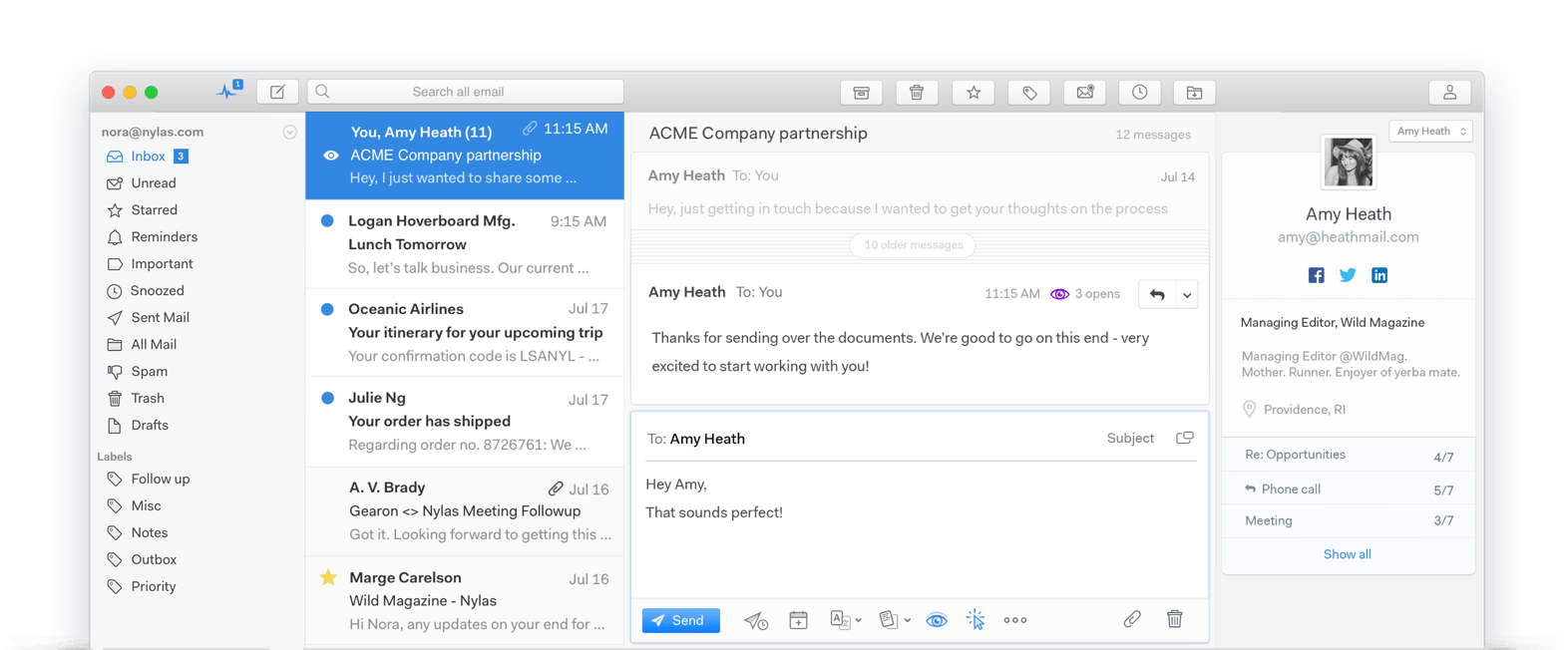
Mailspring is an open-source email client that is fast, well-featured, and supports a broad range of services including Gmail, Office 365, Yahoo! Mail, iCloud, and Fastmail. If you want a capable free client you can also inspect and modify yourself, Mailspring is one of the better options available.
Speed and Functionality
Mailspring caches your messages locally, which makes searching through old email genuinely fast. You can filter by sender, date, and keywords almost instantly. It is one of the few desktop clients that can match Gmail’s search speed.
Customization and Automation
Mailspring supports custom themes, plugins, and keyboard shortcut presets based on Gmail, Apple Mail, or Outlook. It also includes a rules engine so you can automatically sort incoming mail, route messages from certain senders to specific folders, or filter based on keywords.
Pricing and Value
Mailspring’s free version covers the essentials well. The Pro plan at $8 per month adds contact profiles, follow-up reminders, and read receipts. Whether that is worth it depends on your workflow, since other clients like Outlook include some of those features at no extra cost.
Pros and Cons
👍 Pros:
- Open-source and free for basic features
- Exceptionally fast email search
- Extensive customization and automation options
👎 Cons:
- Pro plan pricing may not offer sufficient value for the cost.
5. Edison Mail
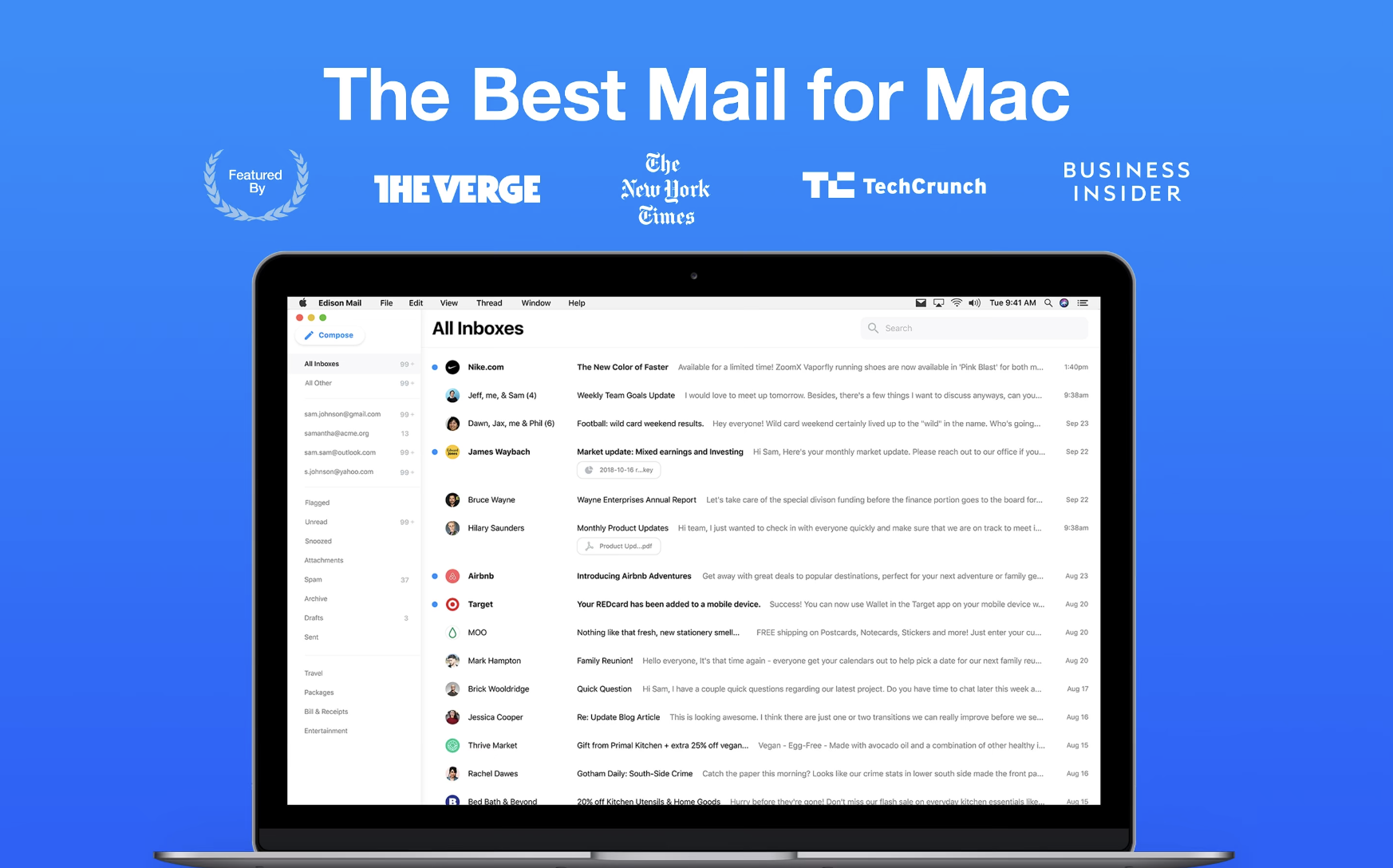
Edison Mail is a free email client focused on cutting inbox noise. It supports multiple email accounts and consolidates them into a unified inbox, and its filtering tools are genuinely good at separating real messages from the automated clutter that fills most inboxes.
Templated Messages: A Time-Saver
One of Edison Mail’s most practical features is message templates. If you send similar replies on a regular basis, you can save those as templates and select them instead of retyping the same thing. It is a small feature with a noticeable impact on daily time spent in email.
Focused Inbox for a Clutter-Free Experience and No Ads
Edison Mail’s focused inbox automatically separates real messages from newsletters, subscriptions, and notification emails. You can pin important messages to review later or snooze them until you have time to respond. It is completely free and has no advertising, which is unusual for a client with this level of polish.
Say Goodbye to Unwanted Emails
Edison Mail offers features like unsubscribe and block, empowering you to keep your inbox clean and free from unwanted messages. Its advanced search functionality is another highlight, making it a breeze to locate specific emails whenever you need them.
👉🏾 Other Appbuilder24 Users also read: The Ultimate Guide to iPhone Screen Resolutions and Sizes in 2024
Pricing and Availability
Edison Mail is free to use, but for those looking for an enhanced experience, there’s Edison Mail+ available at $14.99 per month or $99.99 per year. It’s worth noting that while Edison Mail+ is available globally, it is optimized for use in the USA, according to the vendor.
Pros and Cons
👍 Pros:
- Focused inbox for prioritizing important emails
- Features to unsubscribe and block unwanted messages
- Options to snooze and pin messages
- Completely free to use
👎 Cons:
- Doesn’t honor the “reply-to” tag
4. Microsoft Outlook
Microsoft Outlook is one of the most popular email clients available today, with a long history stretching back over 20 years. Outlook was first released in 1997 as part of the Microsoft Office suite of productivity applications. Since then, it has grown into an integral communication and collaboration tool used by individuals and businesses worldwide.
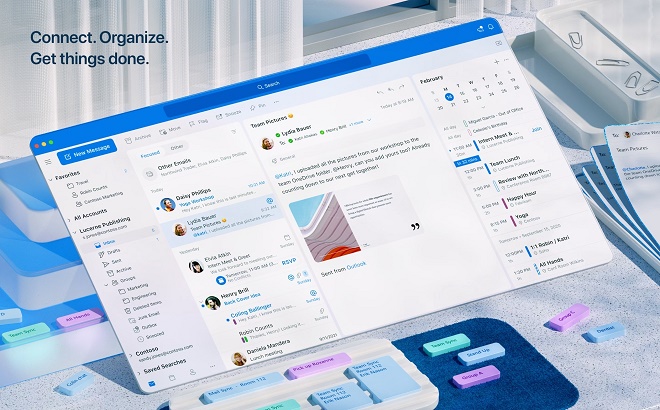
Outlook is much more than an email client. It includes a full address book, calendar, task manager, and note-taking tools, all integrated with the rest of Microsoft Office. That connection to Word, Excel, and PowerPoint makes it a natural choice for anyone who already works inside the Microsoft ecosystem.
Advanced Features
Outlook goes beyond the basics, offering advanced search functions, filters, and automation rules. While third-party tools like Clean Email can provide similar functionalities, having these features built directly into your email client is a significant advantage.
Some of Outlook’s key features and strengths include:
- Email with robust tools for organizing, searching, filtering, and cleaning up the inbox
- Contacts manager for keeping track of relationships
- Calendar with appointment scheduling, event creation, and meeting organization capabilities
- Tasks tool for tracking to-do lists and projects
- Notes for jotting down ideas, thoughts, and reminders
- Wide range of customization options and add-ons to extend functionality
- Tight integration with Microsoft Exchange for those using Outlook with Office 365
Outlook is supported across multiple platforms, including:
- Windows PCs
- Mac computers
- Outlook mobile apps for iOS and Android devices
- Outlook on the web for browser-based access
Having Outlook on Windows, Mac, iOS, Android, and the web means your email, calendar, and contacts stay in sync no matter which device you pick up. The experience is consistent across all of them, which matters when you are switching between a laptop and a phone throughout the day.
Productivity and Efficiency at Its Best
Outlook shines in terms of work efficiency. It integrates with Microsoft Office, allowing you to attach documents directly from Word, Excel, or PowerPoint. You can also sync your Outlook calendar and even connect it to OneDrive for an all-in-one Microsoft experience.
Customization Options
One of the standout features of Outlook is its customization options. You can tailor the look of your inbox and even customize various features to suit your workflow, making it a highly adaptable tool for email management.
Microsoft Outlook earns its reputation as a leading email client through a combination of deep feature coverage, reliable Exchange integration, and broad platform support. It works well for individual users and scales up to enterprise environments without much friction.
Pricing and Availability
Outlook is also available for free on Mac, which makes it an attractive option for macOS users who want a full-featured client without any upfront cost.
Pros and Cons
👍 Pros:
- Seamless integration with Microsoft Office
- Advanced search and filtering options
- Automation capabilities for inbox management
- Free for Mac users
👎 Cons:
- May have a steeper learning curve for those new to Microsoft products
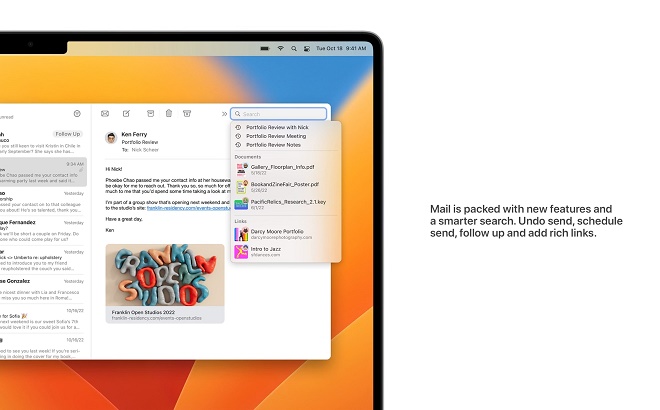
3. Apple Mail
Apple Mail has been the default email client on Mac since 2002, when it shipped with Mac OS X 10.2 and replaced Outlook Express. It comes preinstalled on every Mac and requires no setup beyond entering your email credentials.
If you’re a Mac user who prefers to stick with what’s already available on your device, Apple Mail is your go-to choice. Designed with Apple’s ecosystem in mind, it offers a seamless, user-friendly experience without requiring any additional downloads or payments.
Simplicity In Functionality
Apple Mail is incredibly straightforward to set up and use. Its compatibility with most IMAP and POP3 email clients. including Gmail, Yahoo, Outlook, and AOL. makes it a versatile choice. The unified inbox feature allows you to view all your messages in one place, or you can opt to view each mailbox separately.
Apple Mail connects directly to macOS and offers a clean, uncluttered interface for managing multiple email accounts in one place. Its key features include:
- Native support for iCloud, Gmail, Yahoo, AOL, Microsoft Exchange, and other common email providers. It’s easy to set up new accounts in Mail with just your email address and password.
- Offline access to emails allows you to read and write emails even without an internet connection. The messages sync when you’re back online.
- Effective search with easy inbox organization using flags, labels, mailboxes, and smart folders.
- Support for rich formatting, photos, attachments, and other elements when composing new messages.
- Robust personalization options, including customizable signatures, stationery, themes, and more.
- Integration with other Apple apps and services like Calendar, Contacts, Notes, Reminders, etc.
- Cross-platform syncing on iOS devices with the mobile Apple Mail app.
New Features to Keep You Ahead
Recent versions of Apple Mail have added the ability to unsend a message within a short window, better search results, and follow-up reminders for emails you have sent but not heard back on. These additions bring it closer to feature parity with more complex clients.
Enhanced Privacy with PGP Encryption
Apple Mail supports PGP encryption for users who need it. To use it, you need a personal certificate stored in your keychain, and your recipient needs theirs there too. It is not the most frictionless setup, but it is built in and free for anyone on macOS who needs encrypted email.
Pros and Cons
👍 Pros:
- Comes pre-installed on all Macs
- Easy to set up and use
- Customizable notifications
- New features for improved functionality
- Free of charge
👎 Cons:
- Limited advanced features
- Available for Mac users only
2. Gmail
Gmail is the most widely used email service in the world, with well over 1.5 billion active users. Google launched it in 2004 as an invite-only beta, opened it to the public in 2007, and it has been the dominant free email platform ever since.
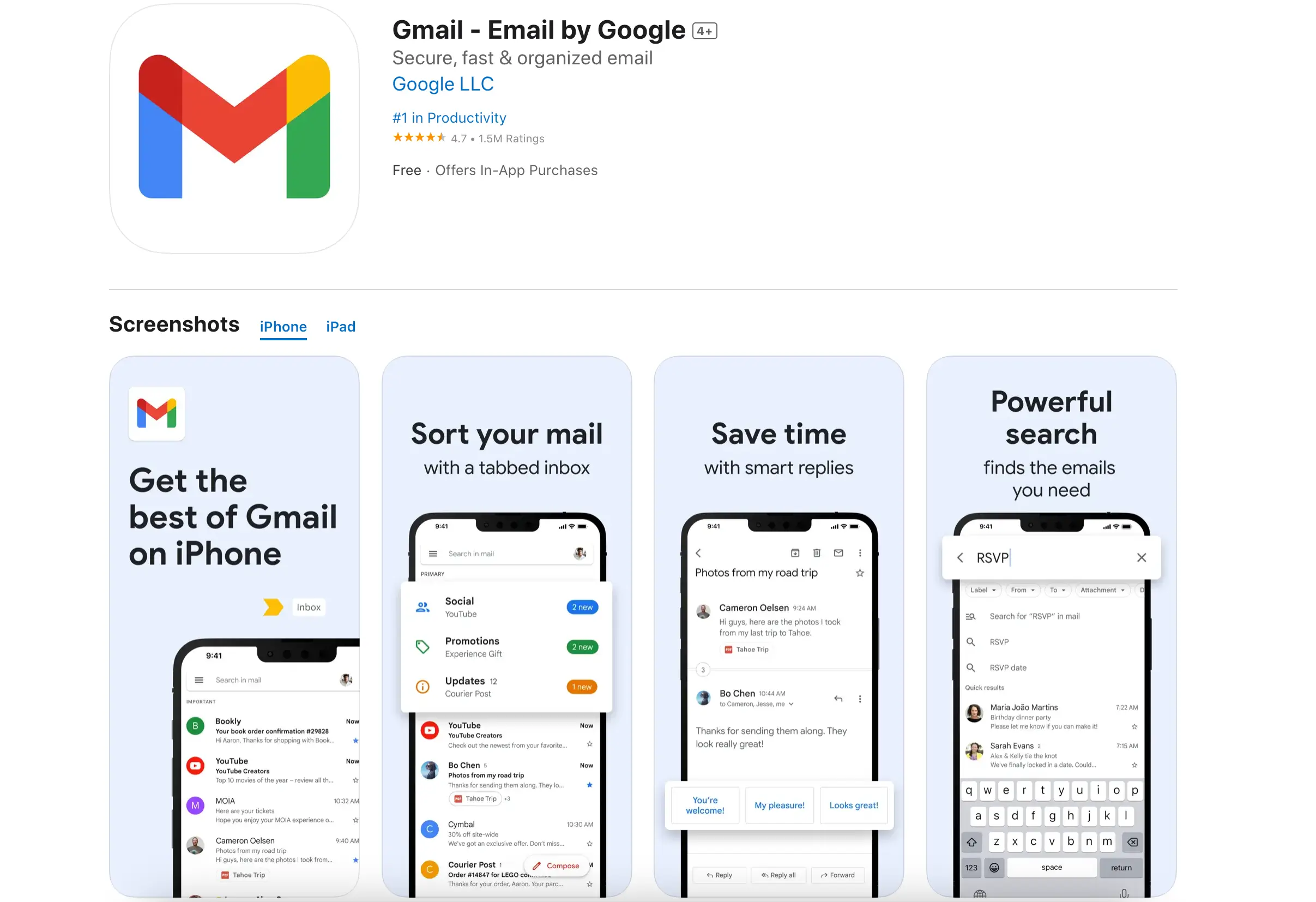
When Gmail launched, offering 1GB of free storage was extraordinary compared to the competition. It also introduced threaded conversations, strong search tools, and tight integration with Google Drive, Calendar, and Docs. Those features became the baseline that every email service has chased since.
Some of Gmail’s key features and strengths include:
- Powerful search – Gmail has robust search functions that allow you to quickly find emails even years back. You can search by sender, subject, content, attachments, and more.
- Conversation view – Email threads are grouped into conversations for easy follow-up. This eliminates clutter in the inbox.
- Integrated chat – Gmail has built-in Google Chat for communicating with contacts right from your inbox.
- Customizable interface – Users can customize the look and feel of Gmail with different density settings, themes, and layout options.
- Add-ons and extensions – Gmail supports add-ons that provide additional features like Dropbox integration, email templates, and more.
- 15GB+ free storage – All Gmail users start with 15GB of free storage that can be upgraded if needed.
- Strong spam filtering – Gmail has historically had excellent spam detection capabilities to keep your inbox clean.
Gmail works in any web browser on any desktop and has dedicated apps for iOS and Android with native push notifications. It is one of the few email services that genuinely works equally well on desktop and mobile, which partly explains why billions of people rely on it.
1. Zoho Mail
Zoho Mail is a business email client developed by Zoho Corporation, a company known for building an extensive suite of cloud-based productivity and CRM tools. Zoho Mail has been part of that suite since 2005 and has built a steady user base among small and mid-sized businesses that already use Zoho’s other products.
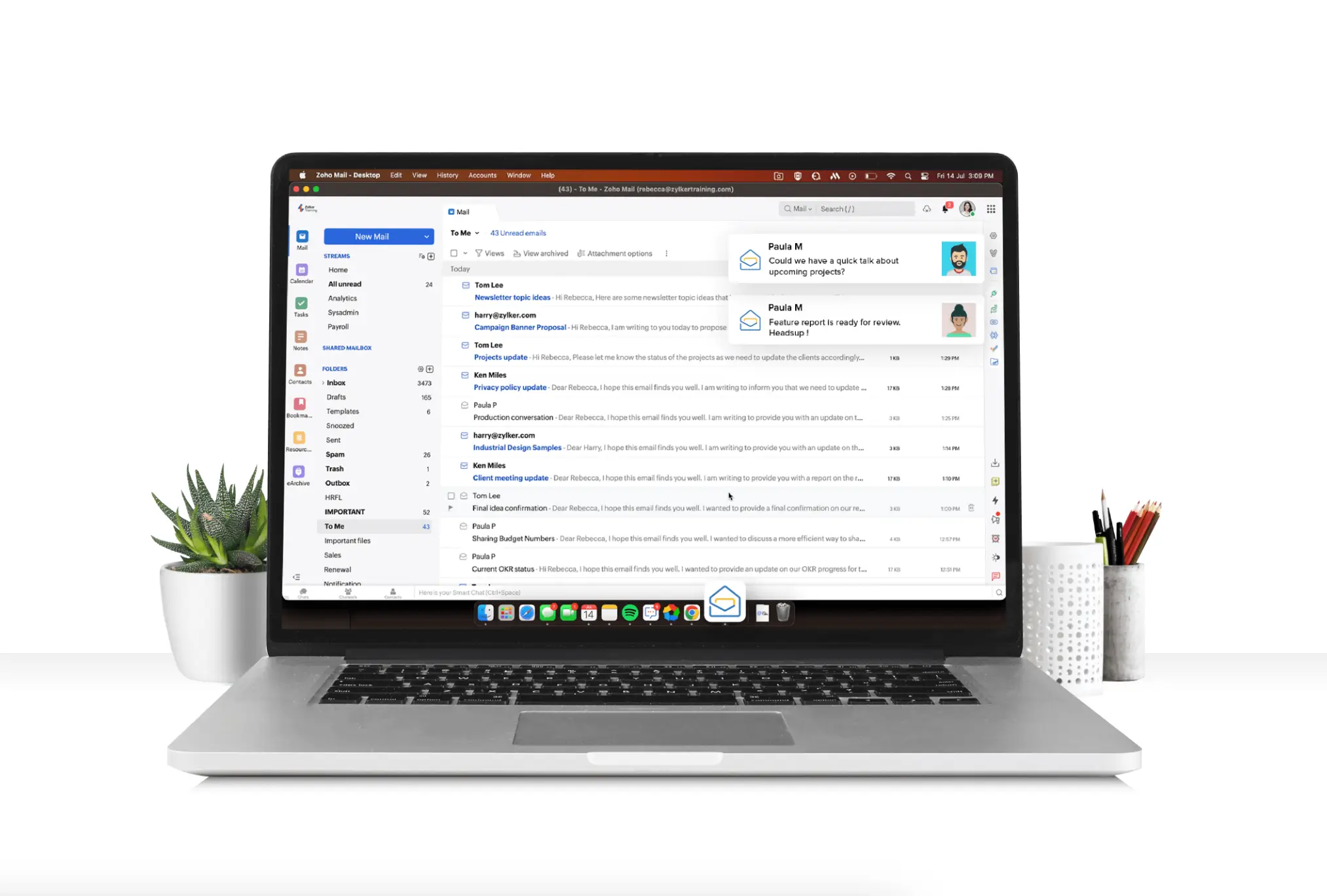
Some key features and strengths of Zoho Mail:
- Easy-to-use interface with drag-and-drop functionality to organize emails
- Inbuilt calendar, notes, tasks, and contacts manager alongside email
- Robust email collaboration tools like shared mailboxes, polls, newsletters
- 256-bit AES encryption for security
- IMAP/POP support to sync with other clients
- 15GB free storage expandable with paid plans
- Add-on apps like CRM, Office Suite integration
Zoho Mail works on Windows, Mac, Linux, iOS, and Android. The web interface runs in Chrome, Firefox, Safari, and other major browsers. Native mobile apps for iOS and Android are also available for users who prefer a dedicated app over the mobile browser.
Zoho Mails Plan Pricing
Zoho Mail offers various pricing plans:
- Mail Lite: This plan is billed annually, providing 5 GB or 10 GB per user options.
- Mail Premium: Offers 50 GB mail storage plus 50 GB archival storage per user, also billed annually.
- Workplace: This includes a complete communication suite with business email and online office apps, also billed annually.
- Forever Free Plan: Up to five users with 5GB per user and a 25MB attachment limit, including email hosting for a single domain.
These options cater to different business sizes and needs, from small teams to larger enterprises.
👉🏾 Other Appbuilder24 Users also read: Complete list of top mobile app stores in 2024
Zoho Mail works best for teams that already use Zoho’s broader suite of business tools. In that context, it becomes the communication hub for a unified workspace covering CRM, project management, documents, and more. For businesses in the Zoho ecosystem, it is a natural fit, and the free plan is generous enough for smaller teams to start without any upfront cost.
Make an app with Appbuilder24 App Builder
Thanks to our user-friendly app builder, you can create premium apps without writing a single line of code. Easily build an app for your website or business.
Comparison of Key Features
The right email client depends on which features matter most to your workflow. Here is a breakdown of how the main options compare across the criteria most people care about:
Calendars and Contacts
- Outlook, Gmail, and eM Client have built-in calendars and contacts that sync across devices.
- Apple Mail uses Apple’s Calendar and Contacts apps to provide full integration.
- Thunderbird and Postbox can integrate with providers like Google Calendar.
- Zoho has its own calendar but limited contact support.
Email Encryption
- Outlook, Postbox, and eM Client support email encryption features like S/MIME.
- Gmail, Apple Mail, and Thunderbird offer more limited encryption support.
- Zoho Mail does not have built-in encryption.
Search Capabilities
- Outlook, Gmail, and eM Client have powerful searches for emails and attachments.
- Apple Mail’s search is more limited. Postbox and Zoho Mail also have basic search.
Customization
- Thunderbird is highly customizable with add-ons and themes.
- Outlook, Postbox, and eM Client also allow customization of the interface.
- Gmail, Apple Mail, Edison, and Zoho have limited customization options.
Pricing
- Outlook, Apple Mail, Thunderbird, Edison, and Zoho are free.
- Gmail is free with ads and others at $50/year for ad-free.
- Postbox Client is $49 for a lifetime license.
Outlook and Gmail cover the most ground out of the box, making them the safest default choices for most users. Thunderbird is the better pick if you want to configure everything yourself and prefer open-source software. Ultimately the right client is the one that fits how you actually work.
Why Use an Email Client and Which is the best email clients? 🤔
Email is not going anywhere. The average office worker receives around 120 messages per day, and most of that time is spent just sorting and responding rather than doing actual work. A good email client will not eliminate that volume, but it will cut the time you spend managing it, through better filtering, faster search, and tools that help you triage what needs attention now versus what can wait.
Wrapping up 🎯
There is no single best email client for everyone. Here is a quick summary of the strongest options based on what you actually need:
- Outlook is hard to beat for a full-featured client that integrates with Microsoft Office and Calendar. It works great for business and power email users.
- Gmail is the best free web-based client. It provides a minimalist interface, along with Google’s powerful search and endless storage. It’s a top pick for personal use.
- Apple Mail offers the cleanest and simplest native client for Mac users who want hassle-free email without a learning curve.
- Thunderbird is the most customizable open-source client packed with features. It’s ideal for tech-savvy users who want lots of control.
- eM Client provides a streamlined client that excellently balances power features and simplicity. It’s a great option for productivity-focused users.
- Postbox offers a fully-featured client for power users who want a Gmail-like interface with more customization.
- Zoho Mail is the best freemium client for those seeking a feature-rich webmail experience with a calendar, storage, and more.
If you want the deepest integration with non-Google services and the most comprehensive productivity tools, Outlook is your best option, provided you do not mind a feature-heavy interface with a bit of a learning curve.
For Mac users who want something that just works out of the box, Apple Mail is the easiest starting point.
We Love Edison Mail 🌟
Edison Mail deserves a mention for anyone dealing with inbox overload. Its focused inbox feature does a good job of separating real messages from the automated noise that fills most inboxes. The message template feature is genuinely useful for people who send similar replies regularly, and the whole thing is free with no ads. The one limitation worth knowing is that its handling of the “reply-to” tag is not perfect, but for most users that will not come up often.
Apple Mail is a fine starting point, but it is far from the only option for Mac users. Every client on this list offers something different, whether that is stronger encryption, better Gmail integration, or smarter inbox filtering. Try a few and see which one fits your actual habits rather than your theoretical ideal workflow.
A capable email client makes a measurable difference to your day. Features like keyboard shortcuts, smart filtering, and snooze options all add up. Cut even 30 seconds from each email you process and across 120 daily messages that is a full hour back in your schedule.
For the best results, combine a good email client with automation rules that handle routine sorting for you. Edison Mail is a good example of a client that does both: it manages your inbox and actively reduces how much clutter reaches you in the first place. Less time on email means more time on work that actually moves things forward.