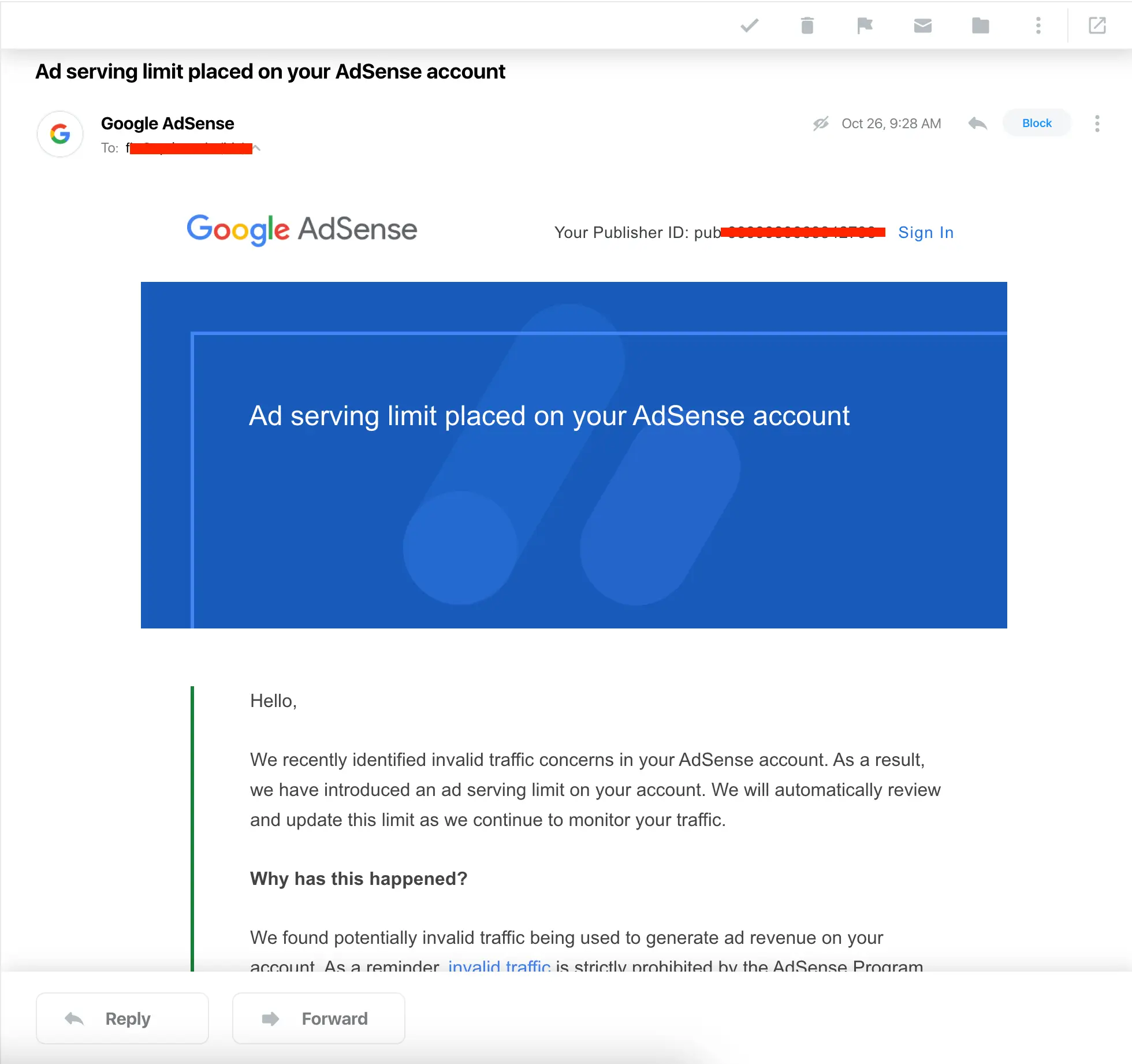
If Google just told you that your account has an ads serving limit, you’re not alone. App developers and website owners put real effort into building their platforms, only to find ad revenue suddenly cut off by a restriction that can feel completely opaque. Both AdSense and AdMob impose serving limits, and getting past them requires understanding what triggered the problem in the first place.
AdMob and AdSense are Google’s primary ad platforms, covering mobile apps and websites respectively. Both use limits to protect advertiser budgets and maintain traffic quality. When you hit one of those limits, ad delivery slows down or stops entirely until Google lifts the restriction, which can have a direct impact on your monthly earnings.
👉🏾 Other Appbuilder24 users also read: A Complete Guide to Mobile App Development in 2023
This guide walks through what ad serving limits actually are, the most common reasons publishers trigger them, and the steps that have worked to get accounts back to normal. We’ll also cover how to optimize your ad setup going forward and what alternative networks are worth considering if the limits keep returning.
How to Fix AdMob Ads Serving Limits and AdSense Ads Serving Limits
Whether you’re setting up ads for the first time or dealing with an existing restriction, this guide covers everything you need. Before getting into the fixes, it helps to understand how each platform works and why limits get applied in the first place.
Google Adsense
Google AdSense is the standard ad platform for website publishers. It works by connecting advertisers who want visibility with publishers who have traffic. Google handles the advertiser relationships and ad technology, then places relevant ads on your pages automatically. You focus on your content, and AdSense handles the placement logic.
The revenue model is straightforward. You earn based on clicks or impressions depending on the ad type. The split is 68% to you and 32% to Google. That share covers everything Google manages on the backend: the advertiser auction, fraud detection, payment processing, and the technology that targets ads to your audience. Your role is to attract real visitors and let the platform do the rest.
Google Admob
Google AdMob is built for mobile apps. If your app has downloads and active users, AdMob gives you a direct way to generate revenue from that traffic. The model mirrors AdSense: Google connects your app inventory with advertisers, places ads at appropriate moments in the user experience, and pays you based on the interactions those ads receive.
The revenue split mirrors AdSense at 68/32. Google’s share covers the entire advertising stack, from the real-time bidding system to the reporting dashboard. Your job is to build an app that users actually want to spend time in. The better your retention, the stronger your ad metrics will be.
👉🏾 Other Appbuilder24 users also read: 11 Powerful Strategies for Mobile App Marketing in 2023
Important notice about Google Monetization Program
Google takes ad quality seriously on both platforms. A large part of that seriousness comes from advertiser trust. If advertisers don’t believe they’re getting legitimate clicks and impressions, they move their budgets to other platforms, which reduces the value of the inventory for everyone. Serving limits are one of the tools Google uses to enforce those standards.
Google’s historical approach was closer to a one-strike rule. Get flagged once and your account could be terminated immediately. Some publishers pushed things too far, using artificial traffic methods that drove up advertiser costs without delivering any real value in return.
Those practices violate Google’s policies and, more practically, they don’t work long-term. They waste advertiser budgets on traffic with zero intent, which damages the ecosystem that pays you in the first place. If any of that describes your situation, stopping now is the only path forward. The steps in this guide assume you’re working with legitimate traffic and want to resolve a limit that was applied fairly or applied in error.
Google has adjusted its approach over time. Rather than outright banning accounts immediately, the current system often applies a serving limit first. This gives publishers time to clean up traffic sources, fix policy issues, and demonstrate that their platform delivers real value. It’s effectively a review period, and how you respond during it determines whether your account recovers.
One thing worth knowing if you run both an AdSense account and an AdMob account: Google’s systems are connected. A policy issue detected on one platform can affect the other. If your AdSense account gets a serving limit applied, check your AdMob account too. The same traffic signals and policy flags cross both platforms.
What Are Ad Serving Limits?
Ad serving limits come from Google’s automated systems detecting patterns that suggest poor traffic quality or policy violations. The most common triggers fall into a few categories:
Once you reach the limit, ad delivery stops or drops significantly. No ads means no impressions, no clicks, and no revenue until Google determines the account can resume normal delivery.
Limits typically apply in one of these forms:
- Daily limit – Maximum number of ads that can be served each day
- Monthly limit – Maximum number of ads per month
- Site limit – Maximum active ad units per app or site
In some cases, limits apply to impression counts or click thresholds within a rolling window rather than a hard daily cap.
When you exceed the threshold, delivery pauses until the counter resets or until Google reviews and adjusts the limit on your account. Different ad networks use different thresholds and enforcement timelines.
Knowing how these limits work helps you respond correctly when one is applied and build practices that reduce the chances of triggering another one.
What causes the ads serving limits?
Ad serving limits come from Google’s automated systems detecting patterns that suggest poor traffic quality or policy violations. The most common triggers fall into a few categories:
Once you reach the limit, ad delivery stops or drops significantly. No ads means no impressions, no clicks, and no revenue until Google determines the account can resume normal delivery. here are the major reasons for ads serving limits:
- Invalid Traffic
Invalid traffic is the most common cause. This covers clicks or impressions that don’t come from genuine human interest in the ads. Bot traffic, click spam, incentive-based clicks, and non-human sources all fall into this category. Google’s systems are designed to catch these patterns, and when they do, serving limits are the typical response.
- Policy Violations
Policy violations cover a broader range of issues. Misrepresented content, hidden ads, encouraging users to click, and intrusive interstitials are all violations that can result in limits being applied. Even a series of minor infractions, rather than one major breach, can be enough to trigger a restriction.
- Overlays
Overlay ads, which appear on top of existing content, are a known risk area. Full-screen overlays and floating banners that obscure content tend to generate accidental clicks, which Google flags as low-quality engagement. Moderate, clearly dismissible overlays are less likely to be a problem, but heavy use of this format draws scrutiny.
- Encouraging People to Click Ads on Your Site
Prompting users to click on ads, whether through text, images, or layout design, is a direct policy violation. It inflates click-through rates in ways that give advertisers false data about campaign performance. When advertisers see they’re paying for clicks that don’t convert, they reduce spend, which affects every publisher on the network.
- Placing Ads Where Accidental Clicks Could Happen
Ad placement that regularly produces accidental clicks is also flagged. Putting ads directly next to navigation buttons, action links, or interactive elements leads to unintended taps, especially on mobile. Google treats a consistently high accidental-click rate as a policy problem rather than a layout oversight.
- Sending Traffic to Your Website from Social Media
Social media traffic isn’t inherently a problem, but sending users from social platforms specifically to view or click ads is. That audience typically arrives with no intent to engage with the advertised products, which produces low-quality ad interactions and can put your account under review.
- Buying Low-Quality Traffic
Paid traffic campaigns can also contribute to a serving limit if the traffic they deliver doesn’t engage. Even traffic bought from well-known ad platforms can look like low-quality traffic if users arrive, see the ad, and leave immediately without any interaction. High bounce rates from paid sources are a signal that Google monitors.
- Clicking Your Own Ads
Clicking your own ads is one of the fastest ways to lose your account. Google’s fraud detection systems look specifically for this pattern, and it’s not difficult to identify. Unlike some of the other causes on this list, self-clicking often results in permanent termination rather than a temporary limit.
- Placing Ads on Sites or Apps with Little or No Content
Sites or apps that exist primarily to show ads rather than to serve real user needs are classified as low-quality inventory. If your platform has thin content, no clear purpose, or little reason for users to stay, it’s likely to be flagged during a policy review.
- Using Neferous Bots
Bot traffic generates fake impressions and clicks at scale, which is exactly what Google’s systems are built to detect. Using bots, whether directly or through third-party traffic services that use them, is a violation that can trigger immediate account suspension rather than a graduated limit.
- Placing Ads on Forbidden Sites
Placing ads on sites involved in illegal activity, including unauthorized downloads, pirated content, or sites that violate intellectual property rights, is a serious policy breach. Google reviews the content context of your ad placements, and association with unlawful sites can result in both serving limits and account termination.
The pattern across all of these causes is the same: low-quality or manipulated signals that waste advertiser money. Keeping your traffic genuine, your ad placement clean, and your content valuable eliminates most of the risk.
Tips to Avoid Hitting Ad Serving Limits
Most serving limits are preventable. Here are the steps that make the most difference:
- Optimize Ad Formats – Some ad formats like interstitials tend to have higher clickthrough rates, which can trigger serving limits faster. Consider using lower-performing ad formats like native ads or banners, which stay under the radar more easily. Just be sure to A/B test different ad formats to find the right balance between revenue and limits.
- Block Abusive Traffic – Spammy or abusive traffic from bots, competitors, etc can artificially inflate traffic volume and cause you to hit limits prematurely. Use analytics to identify suspicious traffic sources and block them preemptively.
- Improve Content Quality – Low-quality or copied content tends to have higher bounce rates, fewer pages per session, and poor engagement metrics. Google interprets this as a poor user experience. Focus on improving content quality to boost engagement and satisfy Google’s policies. Higher-quality content earns more user trust as well.
- Avoid Aggressive Monetization – Don’t oversaturate pages with too many ads above the fold. This negatively impacts user experience. Allow plenty of content above and between ads so users perceive value beyond just ads.
- Diversify Traffic Sources – Relying solely on one traffic source like Google Search can be risky. Try to diversify sources across organic, social, referral, email, etc. This reduces dependency on any single source and limits ads serving exposure.
None of these steps are complicated, but they require consistency. Publishers who monitor traffic quality, keep content valuable, and treat ad placement as a user experience decision are far less likely to run into serving limits.
Best Ways to Fix AdMob and AdSense Ads Serving Limits
How to fix Adsense Ads serving Limits
Google’s automated systems are not perfect. Legitimate publishers with clean traffic can still find themselves with a serving limit applied, especially if a traffic spike looks unusual to the algorithm. Whether the limit was triggered by a genuine issue or an overcautious detection, the impact on revenue is the same and you need to resolve it.
The following approach has consistently worked for publishers in the Appbuilder24 community who were dealing with AdSense serving limits. It’s a straightforward process, but you need to follow the steps in order and give it the full waiting period.
Step 1: Remove All Existing AdSense Units
First things first, log in to your website and remove every single AdSense ad unit that you currently have displayed. This is a crucial step, so don’t skip it.
Step 2: Archive All Created Ad Units
Next, log in to your AdSense account. Navigate to Ads > By Ad Unit, and archive all the ad units you’ve created so far. This is like hitting the reset button on your AdSense configurations.
Step 3: Get AdSense Auto Ads Code
Now, still in your AdSense account, go to My Site and click to get the AdSense Auto Ads code. This is a different approach, but trust me, it’s effective.
Step 4: Implement Auto Ads Code on Your Website
Head back to your website and paste the AdSense auto ads code that you’ve just copied from your AdSense dashboard. Make sure it’s implemented correctly.
Step 5: The Waiting Game
The hardest part of this process is waiting. Give the account a full 7 days with the auto ads code in place before checking your status. Revenue will be lower during this window, but cutting the process short typically means starting over.
After roughly a week, most accounts see the serving limit lifted. The reason this works is that auto ads give Google’s own algorithm full control over placement decisions. When Google chooses where and when to show ads on your site, accidental clicks become rare and the traffic signals look much cleaner to their system.
By handing placement control to Google’s system, you also take yourself out of the equation for the types of decisions that trigger limits in the first place. Many publishers find that auto ads not only resolve the limit but produce better revenue than their manual ad unit setup did.
This Is An Article for People Who Have An App To Monetize; You Don’t?
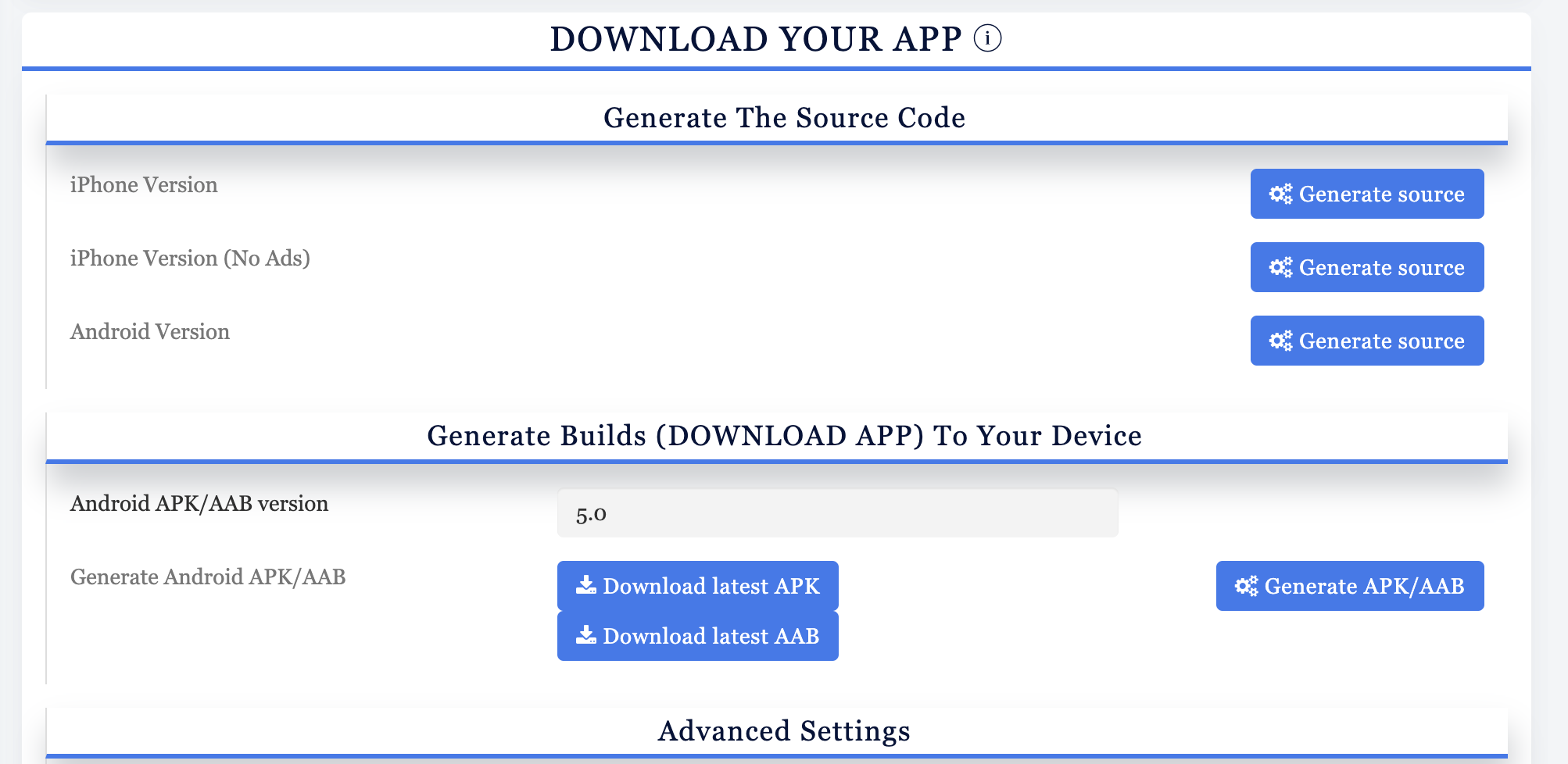
None of this ad monetization advice is useful without an app to run it on. Appbuilder24 gives you a direct path there. You can build apps for both Android and iOS without writing any code, which means you can go from idea to published app without hiring a development team or learning a programming language.
Make an app with Appbuilder24
Create premium apps without writing a single line of code, thanks to our user-friendly app builder. Build an app for your website or business with ease.
Appbuilder24 also includes built-in monetization options so you can enable ads the moment your app goes live. Supported networks include Google AdMob, Appnext, Facebook Audience Network, and Start.io. You don’t need to manually set up SDK integrations. The platform handles it, and you choose which networks to activate from your dashboard.
👉🏾 Other Appbuilder24 users also read: How The Free App Makes Money?
How to fix AdSense and AdMob Ads Serving Limits
Admob Ads Serving Limits
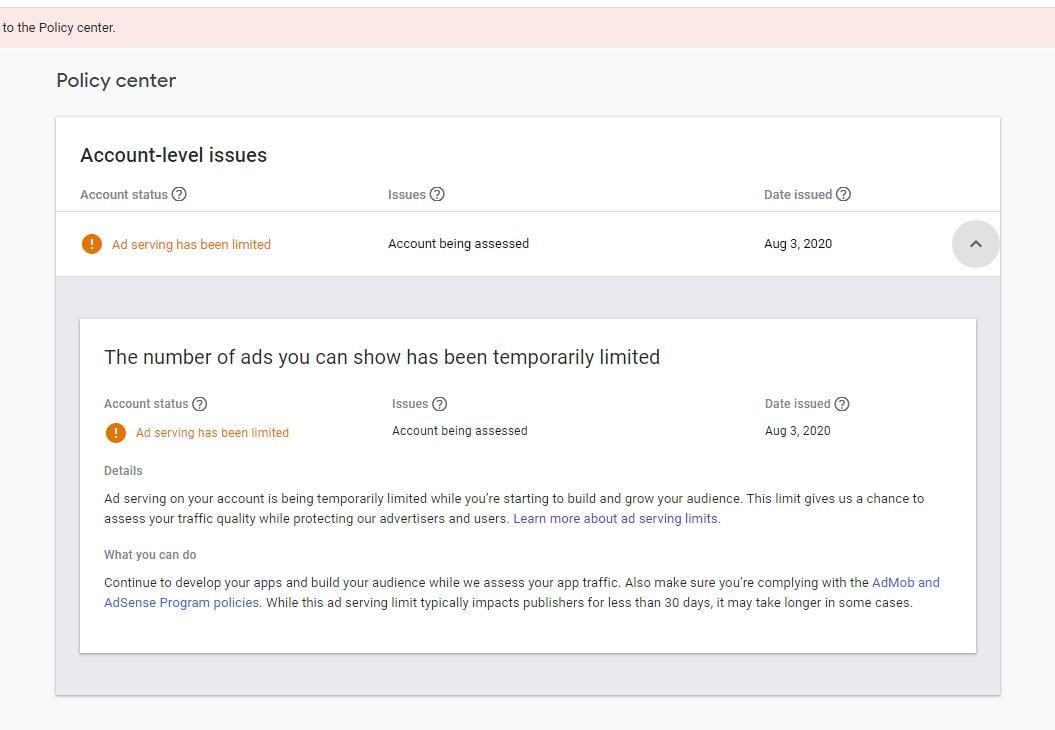
Fixing AdMob serving limits takes a different approach than AdSense because AdMob doesn’t have an equivalent Auto Ads feature. The strategy that works for app publishers in the Appbuilder24 community involves ad mediation.
Setting up mediation with a second ad network gives Google additional traffic data to evaluate your app against. When Google’s system can compare your traffic signals across multiple networks, it has more context for assessing quality. There’s also a practical benefit: if Google pauses delivery while the limit is in place, the mediation partner picks up the slack and keeps some revenue flowing.
If you built your app with Appbuilder24, we have step-by-step guides covering this. You can find instructions on setting up Facebook Audience Network as a mediation partner and doing the same with Start.io. Following those guides resolves the immediate limit issue and leaves you with a more stable ad setup going forward.
What about Alternatives to Google AdSense and AdMob
Dealing with repeated serving limits is a signal that it’s worth adding more ad networks to your setup. Google’s platforms are the largest, but they’re not the only reliable option.
Running multiple ad networks through mediation gives you a fallback when one network limits delivery, and it gives each network more traffic data to work with. Here are the alternatives worth looking at for both websites and apps.
Google AdSense Alternatives
- Media.net: Often considered the best alternative to AdSense, Media.net offers a range of ad types and high-quality ads that are often as good as or better than Google’s. They also have a very responsive support team that can help you optimize your site for maximum revenue.
- Infolinks: This platform specializes in providing in-text ads, making them less intrusive and more engaging for your site visitors. It’s a great way to monetize without affecting user experience.
- PropellerAds: Known for its pop-under ads, PropellerAds offers a variety of other ad types as well, including native ads and interstitials. They offer quick approval and an easy setup process.
- RevContent: If you’re looking for a native ads platform, RevContent could be your go-to. They offer highly customizable widgets that you can adapt to match your site’s look and feel.
- Adsterra: This network offers a variety of ad types, including pop-unders, display ads, and even pre-roll videos. They have a reputation for high-quality ads and offer real-time reporting to track your earnings.
Google AdMob Alternatives
- Appnext: This is a leading mobile discovery platform that helps millions of users experience apps at the right moments throughout the day. Their self-serve platform is easy to integrate and offers a wide range of ad formats.
- Start.io: Formerly known as StartApp, this network offers a variety of ad formats, including interstitial, banner, and video ads. They also provide excellent analytics tools to help you optimize your ad performance.
- Facebook Audience Network: Leveraging Facebook’s extensive data, this network allows you to show highly targeted ads that are more likely to engage your audience. It’s a solid choice for app developers looking to maximize revenue.
- Unity Ads: Unity Ads is designed for you if you’re a game developer. They specialize in rewarded video ads, helping you improve user engagement and increase revenue.
- Vungle: Known for high-quality video ads, Vungle is another excellent choice for game developers. They offer a range of creative ad formats and have a user-friendly dashboard for tracking performance.
Adding one or two of these networks to your mediation setup is a straightforward process and makes your revenue less dependent on any single platform.
Wrapping Up
Ad serving limits are manageable. Most publishers who run into them once don’t run into them again after addressing the root cause. The key is understanding what triggered the restriction and making changes that hold up over time, not just quick fixes that address the symptom.
Here’s a quick summary of what works:
- Keep sites and ad units relevant with high-quality content to achieve better RPMs. Higher earnings per impression mean you can serve more ads and revenue within the limits.
- Delete underperforming sites or ad units that have low click-through and conversion rates. Removing poor performers improves the account’s overall performance.
- Diversify across ad networks so you don’t rely too heavily on one provider. Networks like Media.net, Amazon Ads, and Ezoic can supplement AdMob/AdSense earnings.
- Optimize sites for higher visitor engagement time. Google rewards sites that keep visitors interested and interacting with content.
- Make sure to follow all policies and regularly check your account status. Quickly fix or appeal invalid traffic detections.
Most publishers who follow clean ad practices, use auto ads or mediation, and keep traffic sources legitimate never run into serious limits. When a limit does appear, the steps in this guide get accounts back on track. The goal is not just to lift the current restriction but to build an ad setup that doesn’t attract another one.